Usage and cost
See what each turn and session spends, watch account limits, let turns move to a second account, and cap automatic AI work with one allowance.
Available now. A current user-facing path exists within the stated scope.
Where to see what you spend
Session details shows this chat, the Efficiency pane this session's story, AI Gateway › Usage your account limits and spend, and AI Gateway › Activity and Habits your history.
Everything here is read from this Mac. Subscription use has no price, so for a signed-in account the figures are tokens and limits, not money.
| Place | How to open it | What it shows |
|---|---|---|
| Session details › Usage | The Session details button in the chat header | Turns, model calls, tokens in and out, cache, reasoning, cost, retries. |
| Context meter | The chip in the prompt bar | How full the context window is. |
| Efficiency | ⌘8, or the Efficiency pane in the Inspector | What the session spent (Overview), tested changes (Improve) and every step it took (Timeline). |
| AI Gateway › Usage | Home › Account › AI Gateway | Plan limits for every account, then spend by profile and range, a routing diagram and finished agent passes. |
| AI Gateway › Activity | Same | Your use day by day for a year, and how each model behaves. |
| AI Gateway › Habits | Same | When and how you work with agents, for the active profile. |
| Settings › AI usage | ⌘,, then AI usage | The allowance for automatic AI work. |
Read a session's tokens and cost
Open Session details beside the chat; its Usage section adds up the turns, model calls, tokens and cost of this session.
A bar chart shows tokens per turn; hover a bar for that turn's tokens, tools and cost. A cost marked Estimated means a provider did not report its price, so that figure is partly estimated.
Hover a chat that started sub-sessions to see what the whole tree spent, and how much of it was sub-sessions.
Read the context meter
The chip in the prompt bar shows how much of the model's context window this chat fills; press it to see more.
Session details › Context breaks it down: system prompt, tool definitions, subagents, summaries, messages and free space. Compact session there shrinks the chat now; Bandicot also compacts by itself at a threshold. Sessions explains compaction.
Window unknown means the provider does not say how large the model's window is.
Watch account limits
AI Gateway › Usage shows each connected account's limits as a meter with the share left and when it resets.
Meters refresh about once a minute, and Refresh limits reads them now. A meter warns as it fills, and a pace line says when it will run out at the current rate.
| Line | Meaning |
|---|---|
Limits appear after this key's first request. | Send one message with it. |
Sign in to read this plan's limits. | The account is signed out. |
Claude Code is not installed, so the plan's limits cannot be read. | Install Claude Code. |
Connect a key to read its limits. | No key is saved. |
The provider rejected this credential. | Sign in again or replace the key. |
This account has no plan with limits. | Nothing to show; it bills per use. |
Limits are unavailable right now. | Try Refresh limits later. |
When an account reaches its limit
With two ChatGPT or two Claude sign-ins, a turn that reaches one account's limit carries on with the other, and a notice says Continuing on the next account.
It only moves between accounts of the same kind. The limited account rests until the time it reported, or a quarter of an hour if it gave none, then comes back. A turn moves a few times at most before it stops with the provider's message.
The Usage tab marks a resting account Limited · back in … and names the account turns continue on.
- Open AI Gateway › Providers.
- On the ChatGPT or Claude card, press
Add another ChatGPT accountorAdd another Claude account. - Sign in with the second account.
Set the automatic AI allowance
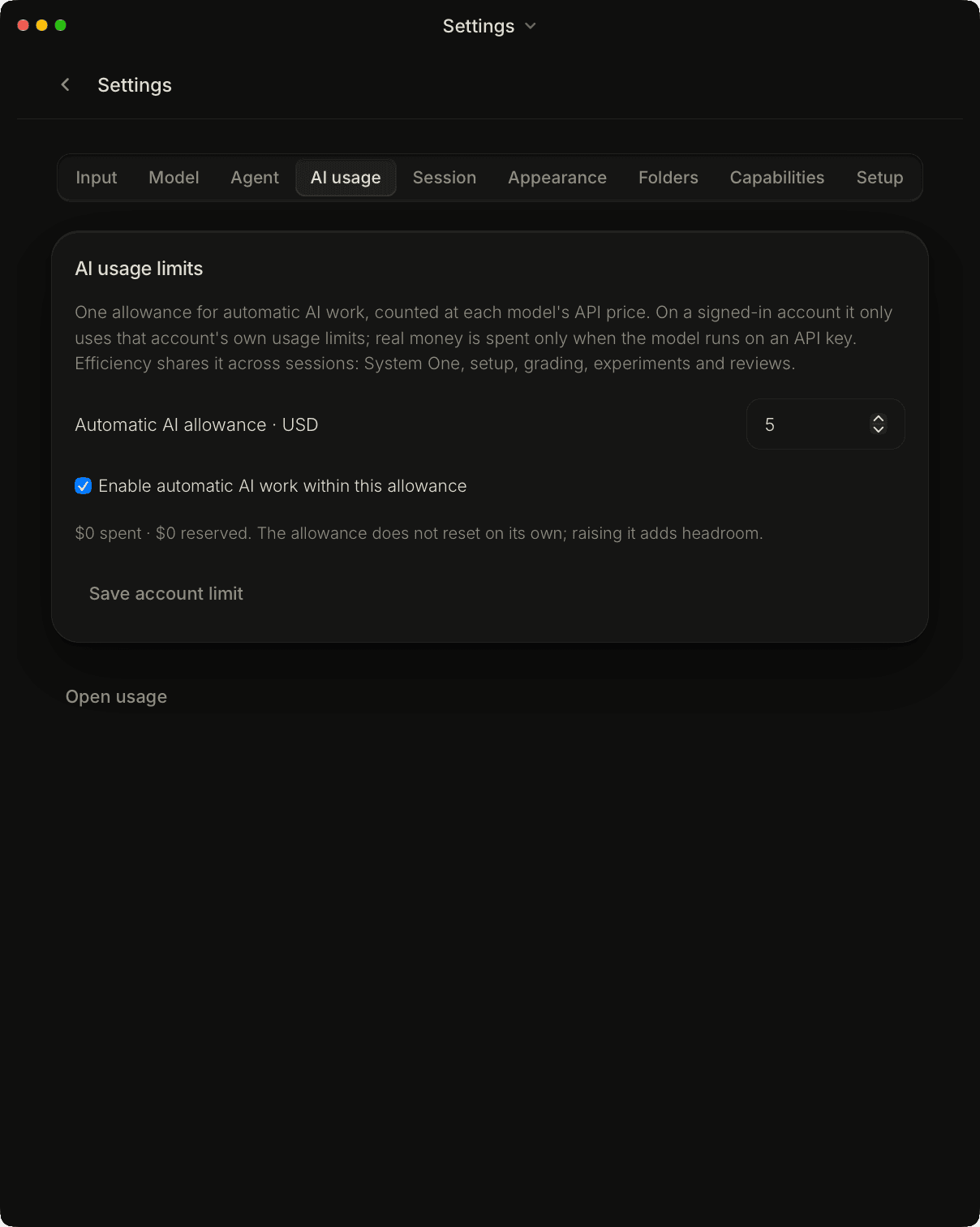
Settings › AI usage holds one allowance, in US dollars at each model's API price, for the AI work Bandicot does on its own.
Automatic work is what you did not type: System One decisions, setup, grading, experiments and reviews. On a signed-in account it only uses that account's own limits; real money is spent only on an API key.
The allowance starts at five dollars and does not reset on its own: raising it adds headroom. Each call reserves its worst case first and settles to the real cost. Turning it off stops jobs already running. The readout shows what is spent and reserved.
Settings has the full tab: AI usage settings.
- Press
⌘,and chooseAI usage. - Type an amount in
Automatic AI allowance · USD. - Leave
Enable automatic AI work within this allowanceon, or turn it off to stop automatic work. - Press
Save account limit.
If it goes wrong
The account allowance is used up. Raise it in Settings › AI usage.- Raise the amount and save.
Automatic AI work is off. Turn it on in Settings › AI usage.- Tick
Enable automatic AI work within this allowanceand save. That allowance is below what is already spent or reserved.- Enter an amount above the spent and reserved total.
This model runs on a key with no known price, so its spend cannot be capped.- Pick a model with a known price, or a signed-in account.
A Claude account used through the Claude Code app does not report its usage, so it cannot run within the allowance.- Connect it with a token from
claude setup-token, or pick another model. Sign in to configure this account's automatic AI usage limit.- Sign in to your Bandicot account; the allowance belongs to it.
Read the Efficiency pane
Efficiency (⌘8) has three views in this order, Overview, Improve and Timeline, and a status word at the top such as Watching or No activity yet.
Overview leads with what the session spent. Press the cost to see how it is counted: each model call's price, once, including work the session started. Quality, time, tokens, context and System One decisions each open a short explanation of how they are counted. Where the work goes lists the model calls, and Skills and tools shows how often each ran and whether it worked.
These are estimates, not invoices. A line says when some calls were not recorded and the totals are partial, and savings are shown only after a side-by-side test. Hold numbers freezes the figures while you read; Back to live resumes.
The pane covers this session and the work it started. With no session open it reads Open a session to see its numbers.
Let Bandicot test improvements
Improve writes checks for your task, tests a change side by side against the current setup, and applies it only when you approve.
The tab is titled Improve this session. A word at its top shows where it stands: Sign-in needed, Off, Watching, Paused or Allowance used up. Under Automatic AI work, a bar shows the shared allowance from Settings › AI usage and what this session has spent from it. Session settings sets how long evidence is kept and the longest background job.
Pause optimization and Resume optimization stop and restart the tests, Stop the running test cancels one in flight, and Keep improving after the agent answers lets tests continue once a turn ends. Your own work always goes first.
Under What good looks like, Set up checks (later Rewrite the checks) has the session's model write the goal and the checks, and Grade the work so far scores it. Under Proposed change, Run a side-by-side test compares a change with the current setup on cost, time and tokens. Review and apply applies a change that passed; Undo this change goes back.
Every step that spends money asks first: the first press shows the cost and where it is paid from, and the second press runs it. A change that fails a required check never qualifies.
- Turn on automatic AI work and set an allowance in Settings ›
AI usage. - Open Efficiency with
⌘8and chooseImprove. - Press
Set up checks, read the cost, and press it again to confirm. - Open
Test casesand add at least one case to learn from and one held back, each with an answer you checked yourself. - Press
Run a side-by-side test, thenReview and applyif it qualifies.
If it goes wrong
Nothing set up yet.- Press
Set up checks. Nothing runs until automatic AI work is on and the allowance has room. No change to test yet.orAdd test cases below first.- A test needs a task that can be replayed. Add test cases in the
Test casesfold; they must be valid JSON. The side-by-side tests do not qualify this change for review yet.- Run more tests. Review opens only when the comparison and the required checks pass.
Automatic runs stopped after a failed job. Set up or grade the session below to start them again.- Press
Set up checksorGrade the work so far.
Read what a session did, step by step
Timeline, titled Everything this session did, lists calls, decisions, checks and changes, newest first, with the record behind each.
A count at the top reads, for example, 3 updates. Each row shows the time, an update number and what happened: a model call started or finished, a tool, a skill loaded or used, System One decisions, context trimmed, or an improvement step. Work done by a sub-task is marked with sub-task and its id.
Press a row to open its record and a fingerprint (a SHA-256 of the record, to show it was not changed). Show earlier reads older rows. If new rows arrive while you read older ones, Show latest returns to the live page.
If it goes wrong
Nothing yet.- The session has done nothing yet. Each model call, tool, skill and decision appears here as it happens.
Read spend by profile
On AI Gateway › Usage, the Usage board shows tokens, cost, turns and tool calls for one profile or all of them, over seven, thirty or ninety days.
The Profile menu starts on your current profile and has All profiles; with other profiles on this Mac it lists them too. Range offers 7 days, 30 days and 90 days. Four tiles show Tokens, Cost, Turns and Tool calls; the cost tile says every turn priced or some turns unpriced. Tokens per day charts input, output and cache reads. With All profiles chosen, a Profiles card ranks them.
Below are cards that rank what you used: Providers, Models, Effort, Work profiles, Agents, System One, Tools, Browser, Skills, MCP servers, Plugins and Jev commands. A card shows its top rows; Show all and Show fewer expand and fold it. A card with nothing in the range is left out and named in one line: Nothing recorded in this range for ….
In Settings › Profiles, each profile also shows its last thirty days as one line, or No use in the last 30 days.
If it goes wrong
No turns in this range.underTokens per day.- Nothing was recorded for that profile in that range. Choose a longer
RangeorAll profiles. Usage is unavailable right nowwith a reason in brackets.- The ledger could not be read, and nothing had loaded yet. The reason in brackets says what failed; try again in a moment.
See routing and agent passes
Lower on AI Gateway › Usage, Routing draws accounts, the gateway and the profile that spends, and Agent passes lists each finished agent pass.
The Routing diagram shows your connected accounts feeding the gateway and the profile that spends. An account with a stored credential counts as connected before it has run a prompt.
Agent passes is a local record of passes that finished. Today counts Completed, Interrupted and Failed. Pass history filters by range (Today, Last 7 days, Last 30 days or All recent), by outcome and by workspace, and Refresh reads the ledger again. Interrupted and failed passes stay listed, so the history stays honest.
If it goes wrong
No passes match these filters- The ledger records finished passes only. Run a prompt, or broaden the range, outcome or workspace.
See your history: Activity and Habits
AI Gateway › Activity shows your use day by day over a year and how each model behaves, and Habits shows when and how you work; both are read from this Mac only.
Activity has a year of days as a grid, then How each model behaves, with a range of 30 days, 90 days or 1 year. Each panel compares models on one habit, and none of them is a score. A bar appears only after thirty samples of that habit; before that the panel says how many it has. With no turns yet it reads No turns in this range yet., and with an older engine Model habits appear after the next engine update.
Habits, titled How you work, reads the active profile's ledger over a range you choose. It shows sessions, turns, tokens, spend and the peak hour, then traits (press one to see the number behind it), tokens by hour, turns by weekday, how sessions end, which tools fill your context, tokens by project folder, a footprint per session and speed to first token. None of it reaches a model.
The profile switch and the cards for providers, models, effort, agents, tools and the rest are on the Usage tab, not here: see Read spend by profile.
Run automations at half price
On an Anthropic or OpenAI API key, the Slow lane for automations switch runs automation work at half price, and it can take hours.
The switch shows on the provider's card in AI Gateway only for a connected key on the provider's own host. It affects automations, not the chats you type in.
Questions
How do I see how many tokens a chat used?
Open Session details beside the chat. Its Usage section shows tokens in and out, cache, reasoning and cost for the session.
Does Bandicot charge for tokens?
No. Your provider bills you for what you send it. Bandicot shows the figures; a signed-in subscription has no price per token.
What happens when my Claude or ChatGPT plan hits its limit?
With a second account of the same kind connected, the turn continues on it. With one account, the turn stops with the provider's message until the limit resets.