Settings
Every Bandicot Settings tab explained: input, model, agent, AI usage, session, appearance, folders, capabilities, setup, sign-in, notifications and your phone.
Available now. A current user-facing path exists within the stated scope.
Open Settings
Press ⌘, or choose Bandicot › Settings…; the window opens on the tab you used last.
Settings has twelve tabs in a row along the top: Input, Model, Agent, AI usage, Session, Appearance, Folders, Capabilities, Setup, Sign-in, Notifications and Your phone. Profiles and Memory are not tabs; they open from Home.
At the foot of each tab, Open usage shows or hides the usage panel beside the chat, the Context tab of the Inspector.
A control greyed out with Set by your environment (NAME=value); change it where Bandicot is started. is fixed by a BANDICOT_ variable in the shell that started Bandicot. Remove the variable and start Bandicot again to change it here.
Input: the prompt bar
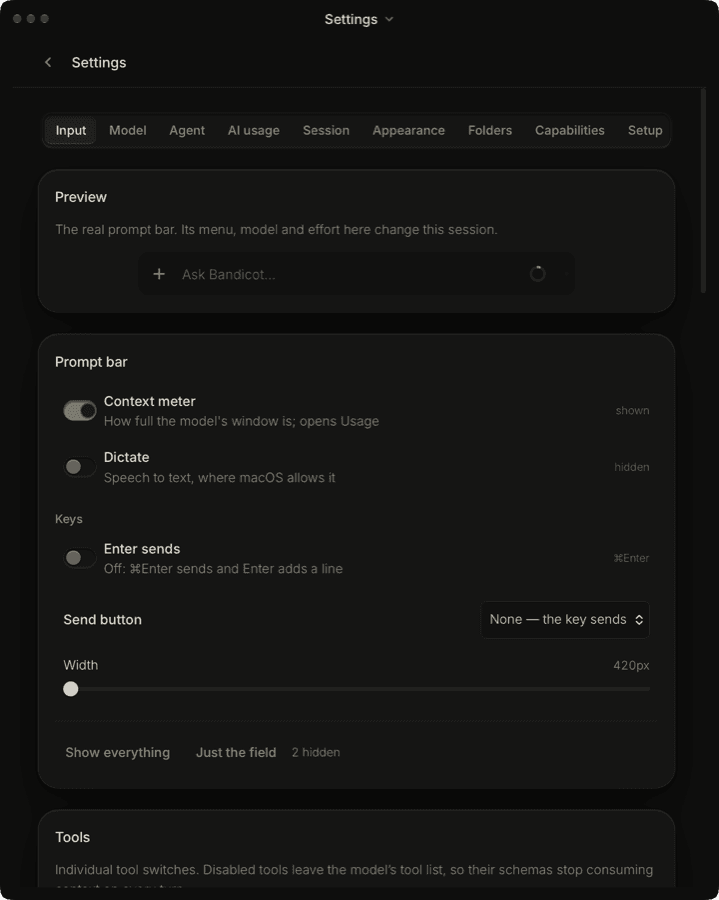
The Input tab chooses what the prompt bar shows, how Enter behaves and which saved setups you can restore in one click.
Preview is the real prompt bar: its model and effort menus change the open session. Prompt bar holds the switches below. Show everything turns every part back on, and Just the field hides them all. The choices are kept for this profile.
A Tools card sits below the prompt bar choices: the same switches as on the Capabilities tab, so changing one here changes it there. Each row shows its tool name and how much that tool was used in the last thirty days, and Web and browser adds a count of browser actions.
Saved setups stores a model, an effort and the prompt bar layout under a name. Everything visible, Focus and Words only are built in and cannot be deleted. Type a name in Name this setup and press Save current setup to add yours, then Apply to restore it.
| Control | What it does | Default |
|---|---|---|
| Context meter | Shows how full the model's window is; click it to open usage. | Shown |
| Dictate | Shows the microphone for speech to text. | Shown |
| Enter sends | Off: ⌘Enter sends and Enter adds a line. | On |
| Send button | Arrow, the word Send, or None (the key sends). | Arrow |
| Width | How wide the prompt bar is, from 420 to 860 points. | 720 |
Model: provider and accounts
The Model tab picks the provider and model for the session and shows each provider's account status, with Connect and Disconnect.
Provider & model sets the session's provider and model. Accounts lists every provider with one status line, and a button or word at its right.
Disconnect signs you out of a provider so you can connect again with another account. Press it once and it turns into Cancel and Disconnect; press Disconnect again to confirm. The button reads Disconnecting… while it works, and a line under the list then reads Disconnected. Connect again to sign in with another account. If it fails, the line shows the reason, or Could not disconnect.
Connect a model walks through every way to connect.
| Status line | At the right | Meaning |
|---|---|---|
No account needed | Ready | A provider such as Bandicot itself, with nothing to connect. |
Connected | Disconnect | Signed in to the provider. |
Connected · key stored on this machine | Disconnect | A key you pasted is saved in the Keychain. |
Not connected · sign in to use it | Connect | A subscription account that needs a browser sign-in. |
Not connected · a key is required | Connect | A provider that needs an API key. |
Agent: behaviour and instructions
The Agent tab sets how the agent answers and thinks, and holds your style, the project handbook and each profile's instructions.
Behavior offers four presets: Concise, Balanced (recommended and the default), Thorough and Cautious. Each sets four switches you can also change one by one. A mix that matches no preset reads Custom. Changes apply from the next chat; thinking depth applies from the next message.
Confirm risky actions is always on: deleting, overwriting, sending, publishing and paying go through the permission gate whatever the switches say.
Instructions has three texts. Your style follows you into every profile and project. This project's handbook is saved in the project's AGENTS.md, or in an existing CLAUDE.md, and wins over the other two. Instructions for this profile start every new chat in that profile. Each saves as you type and has Reset to recommended. New chats use changes at once; press Apply to this chat to send them to the open one.
Each of the three texts shows a badge: Recommended while it is unchanged, Edited once you change it, or Not set. On an edited text, Show changes (then Hide changes) compares it with the recommended text. If the project handbook sits below other AGENTS.md files higher in the repository, Also read, from higher in the repository: lists them, each with Open file.
Under Using them, a fold reads Final prompt · about N tokens, with a count in place of N. Open it to read exactly what the model is sent: the system prompt (core, mode and your style, marked Fixed, cached) and this chat's own block (workspace, profile and project), each with its own token estimate. The counts are estimates.
Models shows which settings the current model accepts, such as thinking depth or temperature, and which Bandicot manages for you.
| Switch | Choices | Recommended |
|---|---|---|
| Answer length | Short, Normal, Detailed | Normal |
| Thinking depth | None, Low, Medium, High, Extra high, Max | Medium |
| Initiative | Ask first, Act and report | Act and report |
| Progress updates on long jobs | Off, On | Off |
If it goes wrong
This text is too long to save.- Shorten the text. Each instruction text holds up to 32 KiB.
Your saved instructions file is damaged, so the recommended ones apply.- Press
Reset instructionsto save again. Bandicot keeps a copy of the damaged file beside it asagent-style.json.bak. Wait for the reply to finish, then apply.- A reply is running. Press
Apply to this chatagain when it ends.
AI usage: the automatic allowance
The AI usage tab sets one dollar allowance for the AI work Bandicot starts by itself, counted at each model's API price.
Automatic work includes System One, setup, grading, experiments and reviews. On a signed-in provider account it only uses that account's own limits; real money is spent only when the model runs on an API key.
Type an amount in Automatic AI allowance, keep Enable automatic AI work within this allowance ticked and press Save account limit. The line below shows what is spent and reserved. The allowance does not reset by itself: raising it adds headroom. Usage explains the readouts.
If it goes wrong
Sign in to configure this account's automatic AI usage limit.- Sign in to your Bandicot account; the allowance belongs to the account.
That allowance is below what is already spent or reserved.- Enter an amount at or above the spent and reserved total shown.
The account allowance is used up. Raise it in Settings → AI usage.- Raise the allowance here and save. Automatic work resumes within it.
Session: permissions
The Session tab shows what the agent may do without asking and lets you edit permissions.json, the file that changes it.
The tab's card is Session defaults. Permissions reads Auto, the only mode: ordinary work runs without asking. Three rows show a verdict: Dangerous shell lines, Writes outside the project and Changes after reading team or web content. Each reads Runs, Asks you or Blocked.
Two more rows are information, not verdicts. Untrusted sources lists which tools count as untrusted (team and web unless your file changes it), and Project rules shows which permissions.json the project uses, by default <project>/.bandicot/permissions.json. Thinking depth, answer length and initiative are in the Agent tab.
The editor below holds your permissions.json. Edit it, then press Save or ⌘S. Approvals explains each rule and every message the editor can show.
Appearance
Appearance switches the window between Dark, Light and Match macOS, and the window repaints at once.
Dark is the default: warm near-black with stone-white text. Match macOS follows the system setting as it changes through the day. The choice is kept per profile.
Folders: pre-approved folders
Folders lists folders the agent may read, search and, if you choose, write in without asking.
Press Add folder…, pick the folder, then set its access to read or write; new folders start as read. Remove takes a folder off the list. A change made while a turn runs applies after the turn.
The list is the same one the profile's config file holds, so editing either shows in both.
If it goes wrong
That folder is already granted.- It is on the list; change its access instead.
Could not save folders- Check that the folder still exists, then try again.
Capabilities: tools and switches
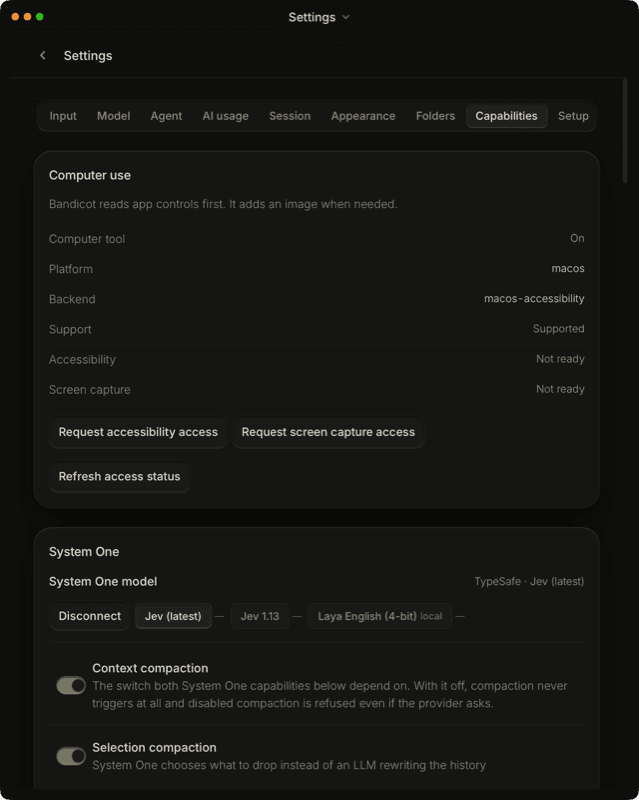
Capabilities turns each agent tool on or off and holds the switches for computer use, System One, compaction, memory lookup and sub-sessions.
Tools: a switched-off tool leaves the model's tool list, so its description stops using context on every turn. Every tool starts on except Diagrams and Canvas. The Versions group decides whether the agent may read or restore this project's history; you always can in Versions.
Computer use shows whether Accessibility and Screen capture are allowed, with buttons to request each. System One picks the decision model and connects TypeSafe with a key.
Context compaction is on by default; with it off, compaction never runs. With Selection compaction on, System One chooses what to drop instead of a model rewriting the history, and Context kept per compaction sets how much stays.
Brain efficiency holds Context lookup, Turn updates and Browser access, all on by default. Agent capabilities holds Reach outside the project (on), Continue down the plan chain (off) and Start sub-sessions without asking (off).
Decision Lab is experimental and off by default. In shadow mode it records what a decision model would answer and never acts on it.
| Switch | Tool | Default |
|---|---|---|
| Read files, Write files, Edit files | read, write, edit | On |
| Run commands | bash | On |
| Program (JS) | program | On |
| Search contents, Find files, List folders | grep, find, ls | On |
| Subagents | task | On |
| Memory | memory | On |
| TypeSafe checks | typesafe | On |
| Web and browser | web | On |
| System One calls | s1 | On |
| Diagrams | diagram | Off |
| Canvas | canvas | Off |
| Computer use | computer | On |
| Team channels | team | On |
| Past conversations | history | On |
| Image generation | image | On |
| Sub-sessions | sessions | On |
If it goes wrong
- Accessibility or Screen capture reads
Not ready. - Press the matching
Requestbutton, allow Bandicot in System Settings › Privacy & Security, then pressRefresh access status. Could not save capabilities- A turn may be running. Wait for it to end and try again; if it repeats, restart Bandicot.
Setup: apply a setup file
A setup file describes your model, permissions, folders, skills, agents, memory, rules and hooks, and Setup shows every change before anything is written.
Press Choose a setup file…, or drop a setup.json, or the folder that holds it, onto the window. The review lists each change by group. Sensitive changes, such as hooks, allow rules, write folders and plugins, stay unticked until you tick them. Keys the file needs are typed into the review and stored only in Bandicot's secrets store, never in the file.
History lists every apply with Undo last apply. Export to folder… writes your skills, agents and memory into a setup.json for another Mac; keys are named, never copied. The same work runs from Terminal with bandicot setup.
If your hooks file changes outside Bandicot, a card reads Your hooks are paused. Read the file, then press the I’ve checked it button to turn hooks back on.
Bandicot also watches ~/.config/bandicot/setup.json while it is open, about every twenty seconds. When that file has changes waiting, a toast reads A setup file is ready to review; if you applied one before and it has changed, Your setup file changed. It shows how many changes are waiting and says nothing is applied until you choose. Review opens this tab. You get one toast for each distinct set of changes, and a paused hooks file raises Your hooks are paused with the same Review button.
- Open Settings ›
Setup. - Press
Choose a setup file…and pick the file. - Read the review. Tick each sensitive change you want and type any key it asks for.
- Press
Apply. A notice confirms the changes, with Undo.
If it goes wrong
This file can't be applied. Nothing was changed.- Fix each problem the list names, at the JSON path it gives, and choose the file again.
The file or your settings changed since this review. Check the list again, then apply.- Read the refreshed review and apply again.
setup files never carry secret values- Remove the key from the file. Type it in the review instead, or pass it to
bandicot setup apply --credential.
Sign-in and passkeys
The Sign-in tab opens your browser to set up a passkey for future sign-ins on this Mac.
Sign in with your email and password first, then press Set up or manage passkeys. The browser opens your account's passkey page on the website.
Notifications
The Notifications tab has one control, Test banner, which sends a macOS banner so you can check Bandicot is allowed to notify you.
Press Test banner. A banner reading Notifications are working. should appear, and a line below confirms it was sent. If no banner appears, allow Bandicot in System Settings › Notifications. Bandicot's own notices also stay in the Activity list in the sidebar.
The button works only in the desktop app. In any other view the tab reads Native banners need the Bandicot desktop app. and the button is greyed out.
Your phone
The Your phone tab keeps this Mac reachable from your phone and, on a laptop, working with the lid closed.
Turn on Reachable from my phone and keep the Mac plugged in. A checklist shows what else keeps it reachable, with a tick read from macOS for each. Your phone explains the lid-closed helper and its safety limits.
Set by your environment
A setting shown as Set by your environment comes from a variable where Bandicot was started, and it wins over Settings until you remove it there.
The Agent tab lists each such variable under Set by your environment, and the control it sets stays read-only. The installed app does not read your shell profile, so a variable reaches it only when you start Bandicot from that shell.
A provider key such as OPENCODE_API_KEY or OPENAI_API_KEY in the environment shows as from your environment beside that provider in Sign-in.
| Variable | Control it sets |
|---|---|
BANDICOT_ACTIVITY | How much of the agent's work the chat shows: compact, balanced or detailed |
BANDICOT_REASONING_EFFORT | Agent, Behavior, Thinking depth |
BANDICOT_SANDBOX | Where commands may write: workspace or off |
BANDICOT_COMPACTION_ENABLED | Capabilities, Context compaction |
BANDICOT_JEV_COMPACTION, BANDICOT_JEV_KEEP_PERCENT, BANDICOT_JEV_KEEP_MAX_TOKENS, BANDICOT_JEV_KEEP_MIN_TOKENS, BANDICOT_JEV_QUESTION, BANDICOT_JEV_GRANULARITY | Capabilities, Selection compaction and its limits |
BANDICOT_CONTEXT_INDEXING, BANDICOT_CONTEXT_FRESH_UNITS, BANDICOT_CONTEXT_INDEX_COVERAGE | Capabilities, compaction: scoring history between turns |
OPENCODE_API_KEY, OPENCODE_ZEN_API_KEY, OPENAI_API_KEY, TYPESAFE_API_KEY | Sign-in, the key for that provider |
If it goes wrong
- A switch will not change and says
Set by your environment. - Remove the variable where Bandicot is started, such as a launch script, then quit and reopen Bandicot.
Questions
Where are Bandicot's settings stored?
In your home folder, outside the app, so updating Bandicot keeps them. Provider keys are kept in the macOS Keychain.
Why is a setting greyed out?
A BANDICOT_ environment variable fixes it. The control names the variable; remove it where Bandicot is started.
Can I copy my settings to another Mac?
Yes. Use Export to folder… in Setup, then apply that setup file on the other Mac. Keys are named, never copied.